
How to use the editing tools in Rayon
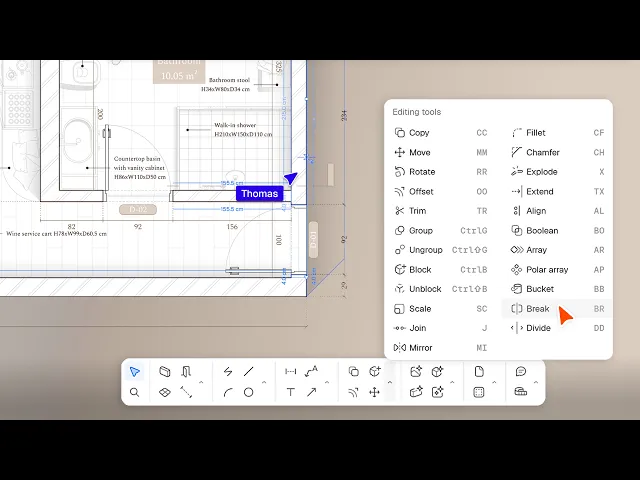
Using editing tools in Rayon: copying, moving, rotating and scaling objects, trimming and joining lines and managing groups and blocks, plus corners, alignment, Boolean operations and arrays.
What you'll learn
Learn how to use Rayon's editing tools to modify, transform, duplicate, and structure 2D geometries. This guide covers core commands including copy, move, trim, group, scale, mirror, fillet, and boolean operations.
Copying Entities Across the Canvas
Activate the copy tool, select the entity, and press enter or click done. Define the base point along with the distance and angle for placement. Choose between copying as a single instance or as a loop to duplicate multiple elements.
Moving and Rotating Objects
Select the move tool, pick a reference point on the object or canvas, and specify the distance and angle, or drag the shape directly. Activate the rotate tool to select an initial anchor point. Choose a second reference point and define the rotation angle.
Offsetting and Trimming Geometries
Engage the offset tool to resize a shape internally or externally by mouse or exact distance as a single instance or loop. To trim overlapping geometries, select the intersecting shapes and activate the trim tool. Hover over intersecting segments to cut and remove unwanted portions.
Grouping Elements and Creating Blocks
Select multiple components and press enter, click done, or right-click to form a group that can be edited, renamed, or ungrouped. Alternatively, convert drawn geometry into a block with a purple outline. Editing one block instance automatically updates all duplicate blocks across your canvas.
Scaling Geometries Proportionately
Select the object and click done or press enter to begin scaling. Pick first and second reference points across an edge, then drag or type a specific distance to scale all dimensions proportionately. You can also resize objects directly using the corner toggles.
Exploding and Joining Shapes
Apply the explode tool to an enclosed shape to separate its boundaries into individual geometry segments. To recombine them, select all touching components and click the join tool. This encloses the space again as a unified shape.
Mirroring Along an Axis
Select the object and choose between moving the original or generating a duplicate copy. Define the mirror axis across the canvas by picking your points. Rayon mirrors the geometry precisely along the designated axis line.
Applying Fillets and Chamfers
Activate the fillet tool on specific corners or all corners, defining the radius by dragging or entering a distance. Alternatively, use the chamfer tool to create straight beveled edges. Choose a regular chamfer for equal 45-degree cuts, or select irregular chamfer to set two distinct setback distances.
Executing Boolean Operations
Select overlapping shapes and activate the boolean tool to access union, intersect, exclude, or subtract modes. Use union to combine geometries into a single shape, or intersect to keep only the shared area. Choose exclude to remove overlapping segments, or subtract to cut one shape from the other.
Creating Arrays and Dividing Lines
Use the array tool to duplicate shapes incrementally or by distribution, specifying count, distance, and angle. Select the polar array tool to duplicate items around a center point using fill or angle mode. To segment lines, use the break tool at points or divide lines by item count or distance.