How to use and manage layers in Rayon
Set up a layer structure, control visibility, locking and order, use sublayers, and apply per-view layer overrides on the paper canvas.
What you'll learn
Learn how to manage and structure layers in Rayon's model canvas, including locking, visibility, and sublayering, as well as override layer visibilities across presentation viewports in the paper canvas.
Accessing Layers in the Model Canvas
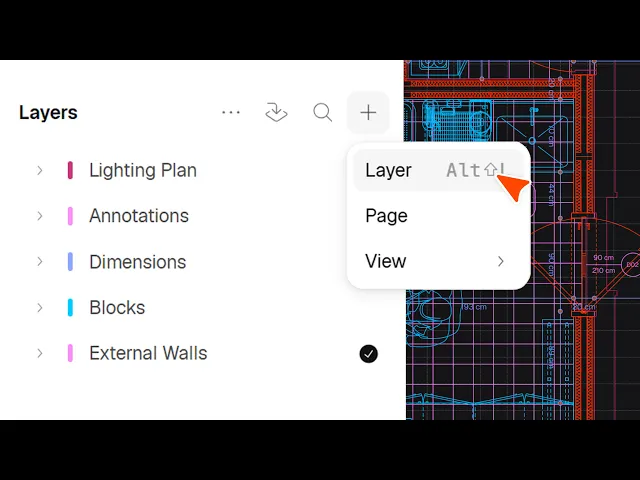
Open the layers tab in the top left corner beneath the canvas selectors to view elements categorized by layer. Differentiate your drawing space by working in the model canvas before moving to produce presentations in the paper canvas. Observe the organized layers displaying various drawing elements such as annotations, dimensions, blocks, and external walls.
Managing Layer Visibility, Locking, and Active States
Click the visibility icon alongside any layer to switch its display on or off within the drawing. Use the lock option to hold elements firmly in place so they cannot be touched, manipulated, or edited when tracing or selecting other components. Select the active layer option to define which layer will automatically receive newly drawn elements from the get-go.
Configuring Layer Settings and Wireframe Display
Access the top right corner to inspect and modify layer properties, including the layer name, assigned color, opacity, and root. Enter wireframe mode through the preferences tab or by using the keyboard shortcut to view your drawing elements coded by their assigned layer colors. Changing a layer's assigned color will immediately communicate and update that color across the wireframe view.
Nesting Sublayers Beneath Parent Layers
Nest layers inside one another to create parent and child sublayer relationships that keep complex drawings organized. In the top right settings panel, set the layer root to nest a sublayer directly under an existing layer, such as placing internal walls beneath a construction plan. Alternatively, click and drag any layer using your cursor in the left-hand layer panel to reassign its hierarchy.
Arranging Layer and Element Stacking Orders
Organize the drawing's visual stacking order by dragging layers vertically in the layer list, ensuring layers higher on the list sit in front of layers positioned beneath. Apply this same principle to individual elements by finding and dragging specific components above or below other items in the layers panel. Alternatively, right-click an element on the canvas and use the arrange menu to bring it forward, bring it to front of layer, or send it back.
Creating, Searching, and Modifying Layers
Select the plus button in the layer panel and click layer to add a new layer to your drawing. Use the search tool to find specific elements or layers in long lists, collapse open layers to tidy the workspace, or delete unused layers. Right-clicking a layer reveals additional management options, allowing you to select children, duplicate, delete, arrange, or toggle the lock state.
Configuring Pages in the Paper Canvas
Switch from the model canvas to the paper canvas to prepare presentation layouts containing images, mood boards, and drawing viewports. Click the plus button and choose page to insert a new presentation sheet into your workspace. Format the selected page using the right-hand panel, where you can set standard sheet sizes like A3, change the orientation, and customize dimensions.
Inserting Views and Overriding Layer Visibility
Click the plus button and select view to generate a default scale viewport looking into your chosen model canvas. Adjust the scale on the right side to values such as 1 to 100, then crop the image down to position the drawing centrally on your sheet. Select the viewport and navigate to the override section at the bottom to toggle individual layer visibilities, enabling customized drawing views that can also be reset when needed.
Rayon basics
How to Use Canvases, Views, and Pages in Rayon
How to Use and Manage Layers in Rayon
How to Add Dimensions, Text, and Tags to Drawings in Rayon
How to Import DWG, PDF & Image Files
How to Draw Lines, Shapes, and Curves in Rayon
The Rayon BIM Toolkit: Walls, Openings & Zones
PDF Export vs Live Presentation
How to Style Your Drawings and Presentations in Rayon
How to Start & Manage Your Interior Design and Architecture Projects
How to Use Pages to Build & Share Presentations in Rayon
How to Share and Collaborate on Models in Rayon
How to Use, Create and Manage Blocks in Rayon
How to Use the Editing Tools in Rayon
Mentioned in this video