
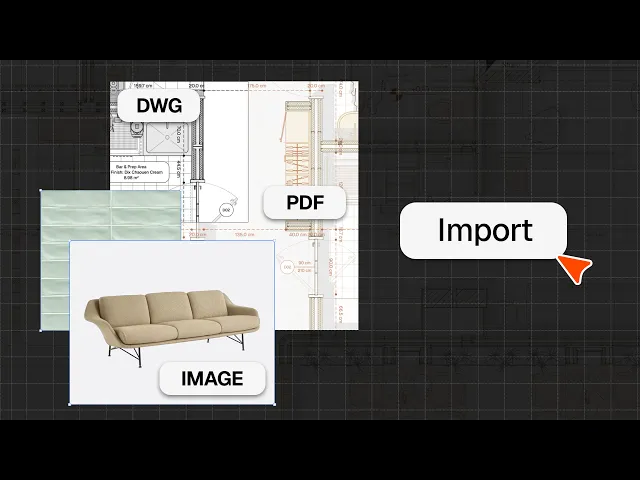
How to import DWG, PDF & image files
Import DWG/DXF files, PDFs and images into Rayon, place and scale them, and use them as the base for your drawings.
What you'll learn
Learn how to import DWG, PDF, and image files into Rayon, accurately set their drawing scales, and edit imported visual assets directly within your workspace.
Importing DWG Files from Project Manager
Navigate to the top right corner of the project manager and click the import button to access your documents. Select the DWG file you want to bring into Rayon to open the available import settings. Customize the model name and configure the import settings before clicking continue to launch the drawing space in a separate browser tab.
Scaling the Imported DWG Drawing
Ensure any browser pop-up blocker is disabled so the temporary import window can load properly. Choose two reference points across a known dimension and specify the exact scale measurement and units. Review the entered measurement, using the back button to remeasure if necessary, and select import once satisfied with the scale.
Checking Distances and Adjusting Units
Verify the accuracy of your imported drawing geometry by using the distance tool on the calibrated element. Navigate to the right-hand side panel to change the model units and set the precision of decimal places. If the scale requires further modification, select the elements, activate the scale tool, and define the distance between two points.
Configuring and Scaling PDF Imports
Select the import button and choose a PDF file to access the page selection and configuration screen. Select individual or multiple pages to import, and toggle editable vectors on or off depending on whether you want vector lines or an image. Once loaded into the model, establish the scale by specifying the distance across two points or by entering a ratio such as 1 to 100.
Importing and Compressing Image Files
Upload an image file using the import workflow, allowing Rayon to compress files that exceed the maximum size requirement. Set the scale of the image by selecting two points across an element such as a scale bar and defining the real-world distance. Finalize the import step to bring the scaled image into your workspace.
Importing Files into an Existing Model
Access the import options located in the top left corner of the workspace while working within an existing project. Choose a DWG, PDF, or image file to insert it directly into your current canvas. This enables you to introduce supplemental assets, such as furniture references, without navigating back to the project manager.
Refining Images and Removing Backgrounds
Select an imported image to view additional customization options on the right-hand panel, including upscale, background removal, block generation, and style creation. Use the remove background feature to clean up product graphics for visual layouts. Reorder your graphics by bringing them forwards or backwards to assemble layered mood boards.
Cropping and Adjusting Image Properties
Copy and paste images directly from a web browser into your Rayon design space. Double-click the image to crop it, and manipulate the frame by adding, deleting, or adjusting control points. Adjust the graphic appearance on the properties panel by altering settings for opacity, exposure, contrast, and saturation.
Rayon basics
How to Use Canvases, Views, and Pages in Rayon
How to Use and Manage Layers in Rayon
How to Add Dimensions, Text, and Tags to Drawings in Rayon
How to Import DWG, PDF & Image Files
How to Draw Lines, Shapes, and Curves in Rayon
The Rayon BIM Toolkit: Walls, Openings & Zones
PDF Export vs Live Presentation
How to Style Your Drawings and Presentations in Rayon
How to Start & Manage Your Interior Design and Architecture Projects
How to Use Pages to Build & Share Presentations in Rayon
How to Share and Collaborate on Models in Rayon
How to Use, Create and Manage Blocks in Rayon
How to Use the Editing Tools in Rayon
Mentioned in this video
Importing
