
How to Turn a Site Survey Sketch into a Floor Plan with AI
Turning a survey sketch into a floor plan in Rayon: importing, scaling and AI plan generation, plus plan corrections, layout changes, presentation sheets and annotations.
What you'll learn
Learn how to convert a hand-drawn site survey sketch into an editable, scaled floor plan in Rayon using AI, develop design iterations, and prepare presentation sheets to share with clients.
Import and Scale the Survey PDF
Create a new model and navigate to the left-hand toolbar to select import and PDF. Locate the scanned site survey document and enter a known check dimension, such as 6,000 mm, to establish accurate real-world scaling. Click continue to bring the scaled PDF sketch directly into the workspace canvas.
Generate Floor Plan Using AI
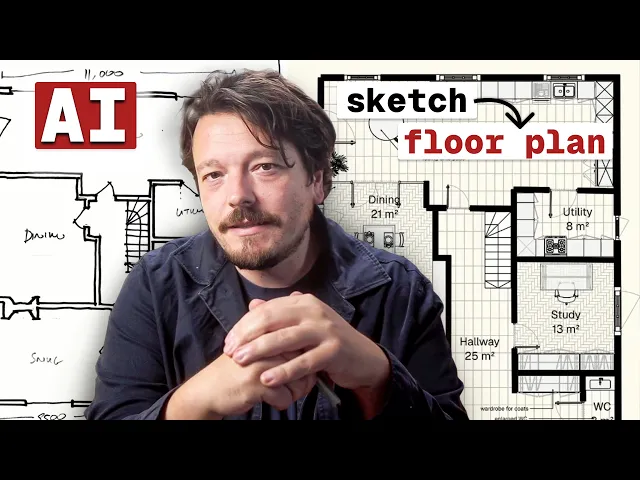
Open the toolbar located below and select the generate plan feature from the AI tools menu. Select the imported survey drawing on the canvas and click the submit button to begin processing the sketch. The AI generates an editable floor plan containing Rayon wall blocks, doors, windows, and tagged room zones with calculated floor areas.
Align Walls and Apply Styles
Inspect the generated walls and manually adjust partition lines so the geometry snaps into a squarer, orthogonal arrangement. Straighten hand-drawn discrepancies across internal partitions and exterior boundaries to clean up the imported survey geometry. Apply visual styling to differentiate elements by setting the external walls to a solid black color fill.
Diagram Spatial Issues and Concept Moves
Copy the existing plan across the canvas to visually diagram the core architectural challenges identified during the site survey. Draw colored shapes with transparency fills and removed strokes to highlight issues with the entrance lobby, living room connections, and kitchen layout. Duplicate the drawing once more to illustrate proposed conceptual solutions using matching colored zones for client clarity.
Remodel Layout and Add Library Blocks
Copy and ungroup the plan to begin modeling the proposed architectural layout, stretching or deleting existing wall blocks as needed. Open the blocks library to search for and place residential items, including entry wardrobes, benches, fitted kitchen units, and dining furniture. Enhance the interior spaces by drawing custom joinery rectangles, positioning glazed glass screens, and applying textures such as herringbone wood flooring.
Set Up Presentation Sheets in Paper Canvas
Navigate to the paper canvas, create a new A3 landscape page, and bring in views from the model canvas. Scale the drawings accurately at 1 to 50, duplicate the viewports across multiple pages, and insert a scale bar block from the library. Add descriptive page titles, subheadings, and text annotations to clearly explain the existing issues and proposed spatial solutions.
Publish and Share the Presentation
Navigate to the share menu in the top right corner and select the share a presentation option. Review all assembled sheets in the pages panel, click publish, and generate an active presentation web link. Copy the generated link to distribute to clients via email or review the completed multi-page slide presentation directly within the browser.
Interior Design Workflows
Architects Can Do Interior Design. Here's What It Took Me to Learn
Why Your Interior Design Project Presentation Doesn't Look Professional (and How to Fix It)
How I Built a Luxury Interior Design Project Presentation (Rayon Template)
How I Go From an Architect's Drawing to a Furnished Interior Floor Plan
Interior Design AI Rendering From Floor Plan to Visualisation in Seconds
9 Tools Every Interior Designer Needs in Your Workflow
From Client Email to Concept Mood Board: My Full Process in Rayon
AI Tools for Interior Designers: Tools That Are Actually Useful
Why Most Interior Design Mood Boards Don't Work (and How to Fix That)
How to Build a Client Ready Presentation (Step-by-step in Rayon)
Restaurant Interior Design Process: Layout, Mood Board, and Presentation in Rayon
How to Draw & Present Multiple Floor Plan Options to a Client (Tutorial)
The AI Interior Design Workflow That Changed How I Work (Rayon AI)
Demolition Drawing Tutorial: Essential Steps for Every Renovation
How to Convince Clients of Your Design Vision (Using Rayon)
How Rayon Replaced My Excel Schedule With a Live Drawing Table (FF&E)
How to Draw Atmospheric Lighting Plans for Client Coordination
How to create FF&E Schedules That Update Automatically with Your Drawings (Tutorial)
How Rayon Made Millwork Drawing 5x Easier (Step-by-Step)
AI Floor Plan Generation: Is it Actually Helpful?
A Contemporary Spin on Millwork Drawings: Client Presentation
7 Common Layout Mistakes & How to Fix Them: Architect’s Advice
How I Built a Minimal Interior Design Concept Deck (Rayon Template)
How to Turn a Site Survey Sketch into a Floor Plan with AI
Interior Design Workflows
Become a trainer
You use Rayon, and want to teach others?
Become a trainer for our academy, and get paid to share your passion!