
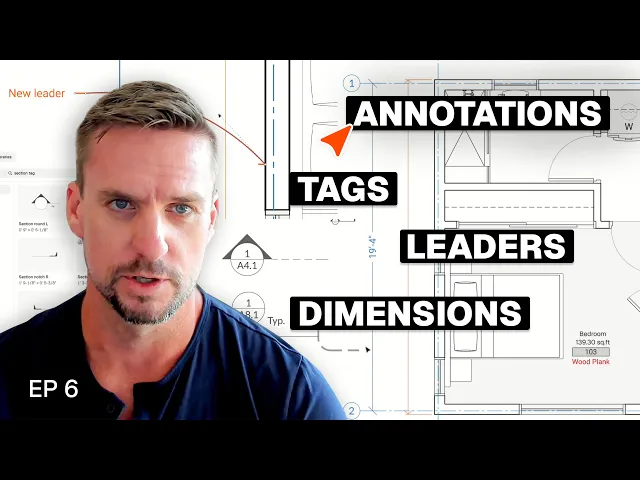
How to Tag, Schedule and Dimension a Renovation Drawing Set
Tagging and dimensioning a renovation set in Rayon: room, door and window tags, custom properties and schedules, plus detail and section tags, area callouts and dimension and leader styles.
What you'll learn
Learn how to enrich architectural drawings in Rayon by adding custom properties to zones and blocks, generating tags, managing schedules, and applying standardized dimensions and leaders for construction documentation.
Add Custom Properties to Room Zones
Select a zone and click the plus button to configure custom property fields for the space, including room numbers and floor finishes. Define these entries as single-select menus, multi-select dropdowns, or basic text fields depending on your documentation requirements. You can also incorporate additional fields for wall finish, trim, cabinetry, countertops, and project notes.
Display Properties Using Zone Tags
Show the newly configured room information on the plan by applying tags via the tag command or a slash command. Style the tags with a background fill or boundary outline to distinguish them from background linework and adjacent text elements. Duplicate the configured tags alongside your zones early in the layout process to streamline repetitive room tagging.
Assign Properties to Door and Window Blocks
Apply property data directly to door and window blocks instead of zones to prepare them for schedules. Input essential attributes such as item numbers, finishes, operational functions, and hardware set specifications into the fields. This structure enables drawing objects to store building data directly within their block properties.
Build Custom Tag Shapes with Text Variables
Draw custom geometry like ovals or hexagons if you require callout outlines beyond standard rectangular tag borders. Convert your drafted outline shape into a block that includes text defined as an editable variable. Bind this text variable to the corresponding door or window number so it matches the associated drawing block.
Organize Model Data with Tables Tool
Utilize the tables tool to compile categorized blocks and zones into structured architectural schedules. Assign each model element into designated categories so the data can be filtered efficiently into its corresponding table. This structure automatically gathers documented properties like finishes, dimensions, and hardware into clean project schedules.
Insert Detail and Section Callout Tags
Browse the block library for prebuilt section and detail tags featuring text variables, or craft custom graphics tailored to your sheets. Open the properties panel to populate drawing reference numbers and sheet identifiers directly into the tag variables. Keep arrow and tail components grouped together while retaining the ability to move them independently across different views.
Create Reusable Dimension and Leader Styles
Configure custom dimension and leader styles across fonts, colors, and tick marks to distinguish between framing, centerlines, and finish surfaces. Duplicate and modify styles for distinct drawing scales by resizing text and arrowheads since annotative text does not resize automatically. Save and label each customized style by its intended scale to maintain easy access throughout the project.
Lock Dimension Angles and Set Offsets
Navigate to the properties panel to lock dimension lines strictly to horizontal or vertical orientations when default angle alignments skew your measurements. Define a precise offset distance in the properties panel to maintain uniform spacing between dimension lines and the annotated geometry. Applying these settings prevents odd dimension angles and enforces consistent documentation standards across the plan.
Customize Leaders and Path Geometry
Double-click any leader line on the drawing canvas to access and modify its geometric path. Switch the leader path between straight lines, curved segments, or splines so the line lands cleanly and perpendicularly against target linework. Ensure the arrows and callout text remain fully visible and correctly aligned with the surrounding drawing features.
Related videos
How Rayon Made Millwork Drawing 5x Easier (Step-by-Step)
Most millwork documentation isn't complicated design work, it's administration.

Import & set up
Understand how to transition files and configure settings when moving from traditional drafting tools. This guide covers initial steps for importing projects and adjusting preferences in a new environment.
Exporting & template set up
Discover how to transition files and customize templates when moving from traditional drafting tools. This guide covers the initial setup steps for a smooth workflow shift.
Become a trainer
You use Rayon, and want to teach others?
Become a trainer for our academy, and get paid to share your passion!