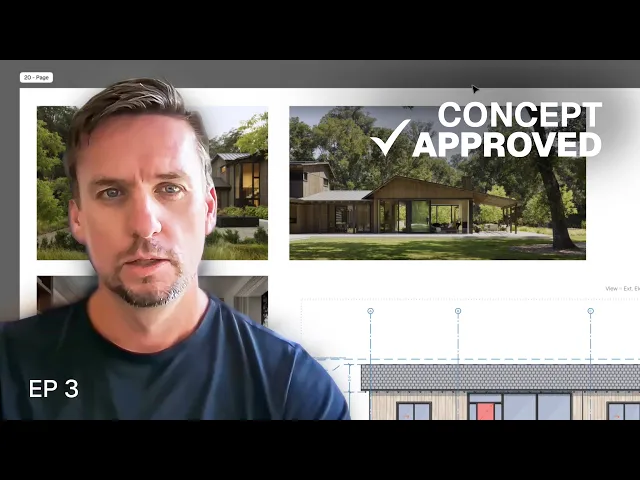
From client brief to concept sign-off: my Rayon process
Build a concept presentation from sketches, precedent images and live drawing views, then share it with the client as a live link or PDF.
What you'll learn
Learn how to assemble and share early concept design presentations in Rayon by importing precedent imagery, laying out scaled drawing views on paper canvas sheets, and publishing deliverables through PDF exports or interactive presentation links. This process allows designers to communicate material intent and structural plans directly from working models without relying on separate presentation software.
Import images through the top menu
Navigate to the top menu in Rayon and select the import image command to launch your local file manager. Choose your desired reference graphic to load it directly into the center of the active model canvas viewing area. Adjust the placed image by repositioning, scaling, or stretching it across the canvas, and hold down the command button to crop the graphic edges to size.
Drag and drop images onto canvas
Open your file manager and drag an image directly into the middle of the Rayon viewing window to place it alongside working drawings. Move the image into position, align its top edge with neighboring content, and scale it proportionally so it matches the height of adjacent precedents. Lock the width and height constraints in the settings if you need to establish specific graphical dimensions across your model canvas.
Place reference images on paper canvas
Select and copy your precedent images from the model canvas, then navigate over to the presentation paper canvas and paste them onto the sheet. Scale down the pasted images to fit the sheet of paper, compensating for the difference between model scale and paper layout space. Import additional images directly from your file manager and resize them to match existing image widths for a clean composition.
Add drawing views to presentation sheets
Select the view tool on your presentation paper canvas and set it to reference the exterior elevations from your model. Establish the drawing view on the page and test scale options such as quarter-inch scale to evaluate how much space it occupies. Reduce the scale to one-eighth inch to ensure the elevation fits comfortably alongside the exterior material reference images.
Prepare sheets for PDF export
Navigate to the pages tab within your presentation paper canvas to inspect all project layouts across the workspace. Choose whether to display every page throughout the project or filter the listing strictly by the active canvas. Review your sheet composition containing precedent imagery and elevation views, then prepare the selected layout for final PDF export.
Generate presentation links for client review
Click the share button in Rayon and select the presentation checkbox to create an interactive browser presentation. Copy the generated URL link to provide clients with direct web access to the slideshow without creating oversized attachment files. Preview the final presentation slides in Rayon and refresh the live link whenever design updates are made so clients always see the latest revisions.
Inside a residential renovation: from brief to final drawing set
Site to Drawing: My Exact Workflow for Existing Conditions
Starting an ADU Renovation: From Brief to Drawing Setup
How I Populate a Floor Plan to Show How a Space Actually Works
How to Create a Demolition Plan and Proposed Layout in Rayon
From Client Brief to Concept Sign-Off: My Rayon Process
How to Show Wall Types, Materials and Shadows in Your Drawings
Mentioned in this video

Images
Views