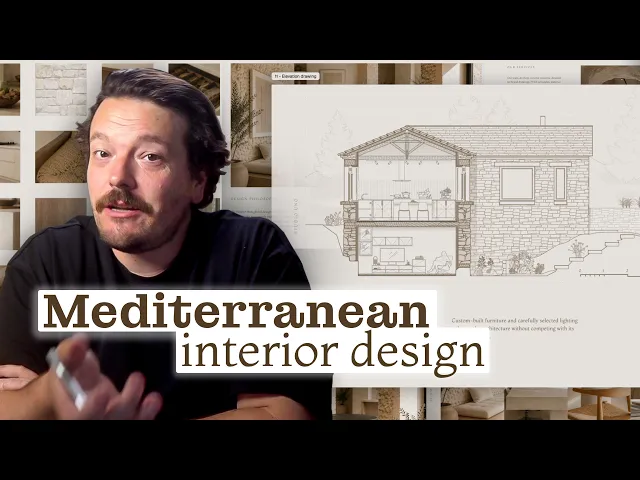
How I built a mediterranean interior project portfolio (Rayon template)
Building a project portfolio with Rayon’s Mediterranean template: placing images, sketches and materials, plus styling drawings, setting up views and adding studio branding.
What you'll learn
Learn how to adapt Rayon's Mediterranean portfolio template into a customized residential project presentation by importing imagery, updating narrative text, restyling architectural drawings, and applying studio branding.
Open the Mediterranean Portfolio Template
Navigate from the Rayon homepage down to workspaces and access templates to view the available options. Under the portfolio category, select the Mediterranean template and click use this template to load it in the browser. The template opens displaying a thumbnail, canvas, presentation pages, referenced drawings, and design standards.
Import Project Images to Model Canvas
Open an existing project file containing floor plans, elevations, sketches, model photography, CGIs, site images, precedents, and material swatches. Copy all of these visual assets from the source file and paste them into a new model canvas titled images. This collects all project information into one centralized workspace before laying out the presentation.
Place and Crop Presentation Images
Copy site photos, aerial location maps, and sketches from the model canvas onto the presentation sheets, then scale and align them to page boundaries. Press control while dragging to change the crop boundary, or select an existing placeholder and use the swatch picker style to replace it immediately. Enable the grid to assist in arranging paired sketches, generated model shots, mood boards, and material textures.
Update Narrative Text and Page Titles
Select placeholder text elements across the presentation pages to edit them with project-specific copy. Replace headline styles and section names with titles like site location, design philosophy, and concept to explain the narrative. Turn on the grid to ensure text blocks and titles snap into considered, well-aligned positions.
Paste Floor Plans and Sections
Return to the original project file to select the floor plan and section drawings drawn in Rayon with textures, block libraries, and area zones. Copy the selection and paste it directly into the template drawing page. The imported drawings sit on the colored background and automatically adapt certain tone values from the template.
Restyle Drawing Elements Using Design Standards
Copy wall types from the design standards sheet or use the swatch tool to apply stone textures and clean outlines across external and internal walls. Edit furniture family blocks to replace stark white fills with solid tones, and update room annotations using the template's predefined font styles. Adjust window fills and lower the opacity of recessed wall fills to give drawings consistent depth and muted tonality.
Configure Model Views on Presentation Pages
Double-click the drawing viewports on the presentation sheets to access and center the model canvas drawings. Adjust layout elements along the grid, set appropriate scales such as 1:150 or 1:100, and pull the crop boundary to frame the floor plan and section neatly. Once the drawings are positioned correctly on the sheets, turn off the grid overlay.
Add Studio Branding and Rear Cover
Drag a studio title block from the personal library onto the canvas, unblock the title sheet, and position the studio logo centrally on the front cover. Insert an A4 rear cover page matching the background tone of the document, add a wordmark pattern image, and adjust its transparency. Select text styles and subtly adjust font colors to establish clear contrast and legibility across all linked pages.
Related videos
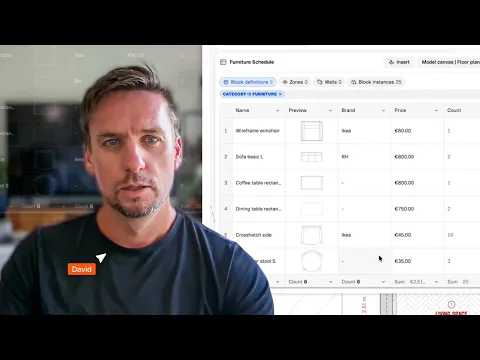
How to create FF&e schedules that update automatically with your drawings (tutorial)
FF&E schedules shouldn't live in a separate spreadsheet, disconnected from the drawing they're meant to describe.

How I built a luxury interior design project presentation (Rayon template)
A luxury project deserves a presentation that matches it.