
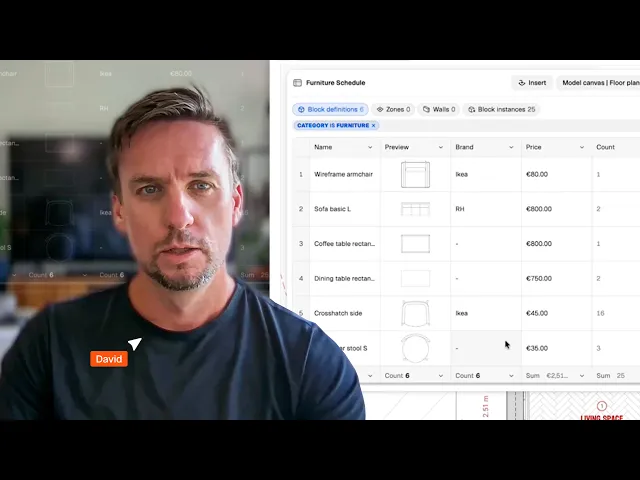
How to create FF&e schedules that update automatically with your drawings (tutorial)
Attach product data (manufacturer, cost, lead time) to furniture blocks, then generate filtered FF&E tables that update automatically with the drawing.
What you'll learn
Learn how to create dynamic furniture and fixture schedules in Rayon that update automatically as floor plans evolve. The tutorial demonstrates defining custom block properties, creating filtered schedule tables with calculated cost totals, and placing formatted tables onto presentation plot sheets.
Define Custom Properties in Block Definitions
Double-click a block on the canvas to edit its definition so property changes apply to every instance. In the properties panel, add new custom properties for category, price, and brand using text inputs or drop-down menus with preset values. Assign values such as furniture category, unit cost, and brand to configure the block data across the drawing.
Assign Properties to Other Plan Blocks
Select the other block types placed throughout the floor plan that need to appear in project schedules. Enable the category, brand, and price properties for each block, designating categories such as fixture for plumbing items. Ensuring every relevant drawing block has these properties assigned prepares all items for automatic table population.
Generate a Filtered Custom Table
Navigate to the tables tab, click the plus button, and select custom to generate a new table from scratch referencing block definitions. Add a table filter based on the category property and select furniture so the schedule isolates furniture objects. Enter furniture schedule as the name to organize the schedule within the project.
Add Preview, Brand, Price, and Count Columns
Add new columns to the table to display item details, including a preview column that shows thumbnail images of the blocks. Insert columns for brand, price, and count to display specification details and automatic quantity calculations. Populate any missing brand or price values directly within the table cells or on the model canvas.
Build a Total Formula Column
Open the custom properties tab, click the plus button, and create a new price property labeled total. Set the property input type to formula and enter a simple math equation multiplying the self price variable by the self count variable. Return to the furniture schedule, add the total column, and set the table footer to show the sum of that column for a running cost takeoff.
Duplicate the Table for Fixtures
Duplicate the completed furniture schedule from the tables tab and rename the new copy to fixture schedule. Open the table filters and switch the category criteria from furniture to fixture to display all fixture blocks. Update any unassigned brand or pricing values directly within the new fixture table cells.
Insert Schedules into Presentation Sheets
Navigate to the presentation sheets tab and open a blank plot sheet for presentation output. Open the tables menu, choose the furniture schedule, and draw the table onto the sheet canvas to insert it. Double-click to customize styling like header fills and borders, then copy the table and switch its referenced data source to the fixture schedule.
Mentioned in this video

Custom properties
Tables & metadata
Blocks
Related videos
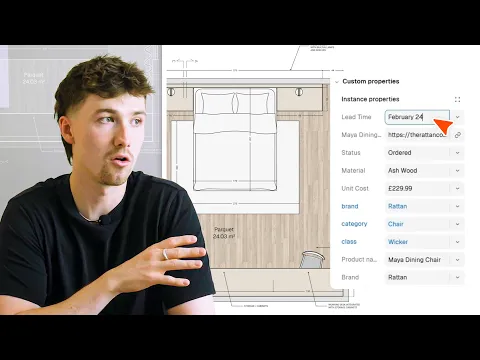
How Rayon replaced my excel schedule with a live drawing table (FF&e)
FF&E schedules that live in a separate spreadsheet are always one design change away from being out of date.