
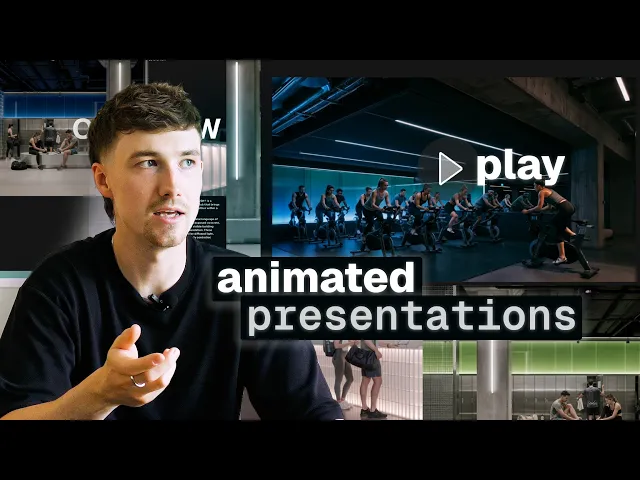
Animate your interior design presentations with AI video (Rayon AI)
Animating interior design presentations in Rayon: adding people and testing materials with AI images, plus video generation, looping videos on the paper canvas and sharing a live link.
What you'll learn
Learn how to bring an interior design presentation to life in Rayon by adding people and material iterations using AI image generation, converting images into continuous looping videos, and publishing a live link for clients.
Generate People in Presentation Images
Select an image on the canvas and open the generate image tool from the bottom AI toolbar. Define a specific area or prompt the tool to add people engaged in activities, such as cyclists in a spin studio or visitors in a changing room. The tool generates a convincing image in a few seconds that preserves the room's atmosphere and original aspect ratio.
Iterate Material and Lighting Variations
Use the generate image tool to rapidly test different design alternatives and finishes without redrawing any project elements. Select a specific feature, such as a glass reception desk or room illumination, and prompt the AI to switch to steel or alter the lighting color. These fast explorations allow clients to compare distinct design directions directly within the presentation.
Position and Crop Replacement Images
Pull the newly generated visuals back into the presentation layout to replace existing placeholder graphics. Scale and align the artwork to fit the slide structure, deleting the previous background image once positioned. Double-click the image to crop it down into place so that it matches the desired framing and overlapping composition.
Arrange Layer Order and Mirror Elements
Manage overlapping visual elements on the same layer by right-clicking the selected image, opening arrange, and selecting bring to front of layer. If subjects like newly added figures land behind foreground text, use the mirror tool to flip the image orientation. This keeps people clearly visible while preventing visual clashes with the layout typography.
Generate Movement with Video Tool
Select an image containing people and open the generate video option from the bottom AI tools menu. Enter a prompt instructing the tool to animate specific motion, such as a person walking through the frame with a gym bag. Rayon takes approximately a minute to produce an animated video sequence cropped to the original proportions.
Configure Continuous Looping Playback
Locate the controls beneath the generated video and select the loop option rather than a single play. Enabling loop ensures the animation plays continuously across the canvas without stopping, providing lively movement throughout the document. This setting allows video elements to remain active even while you navigate or work on other areas of the presentation.
Animate Multi-Figure Gym Activities
Select more complex scenes such as the spin studio and prompt the generate video tool to animate people cycling. The tool generates natural subject activity and dynamic camera panning while strictly maintaining ceiling services, pillars, and lighting positions. Setting this video to loop lets multiple animations run side by side across presentation pages without cluttering the layout.
Publish Presentation as Live Link
Navigate to the pages section on the left-hand side of the interface and click the publish button. Rayon provides a shareable live URL that allows clients to open, view, and flick through pages in their browser. All embedded looping videos will automatically play inside the slides, presenting an interactive, animated design concept.
Related videos
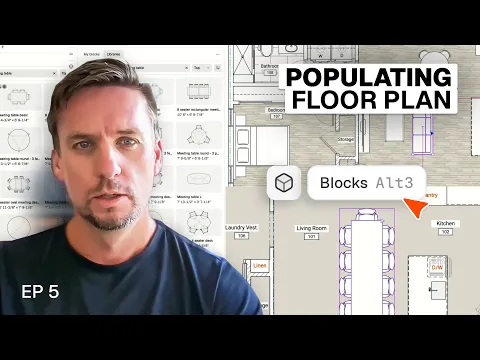
How I populate a floor plan to show how a space actually works
A floor plan with nothing in it tells a client where the walls are.
Drawing, editing & designing
Discover how Rayon simplifies drawing and design tasks compared to traditional CAD tools. Explore key features that streamline editing and improve workflow efficiency in this transition.
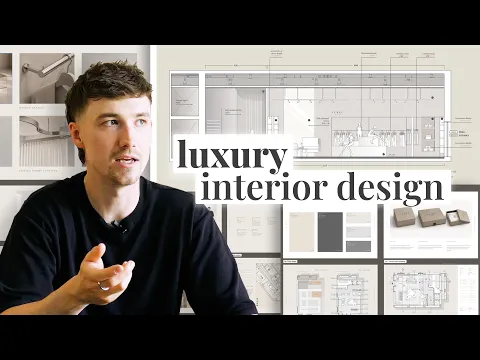
How I built a luxury interior design project presentation (Rayon template)
A luxury project deserves a presentation that matches it.