
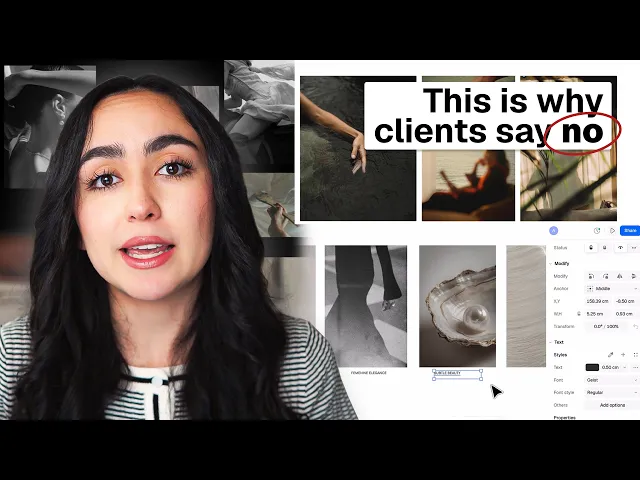
Why most interior design mood boards don't work (and how to fix that)
Andrea's mood board process: start from the concept, curate imagery that conveys emotion, compose the board in Rayon, and add keywords that explain the design intent.
What you'll learn
This guide demonstrates how to build a conceptual interior design mood board from scratch in Rayon using the paper canvas. Viewers learn how to configure pages, paste and crop abstract imagery, edit image properties, and record sensation descriptions to communicate project intent.
Create a New Model
Begin by creating a brand-new model from scratch inside Rayon. You can initiate this action by clicking on the new model button on the main screen or in the top right corner of the workspace. This prepares a fresh project environment for laying out your design concept.
Select the Paper Canvas
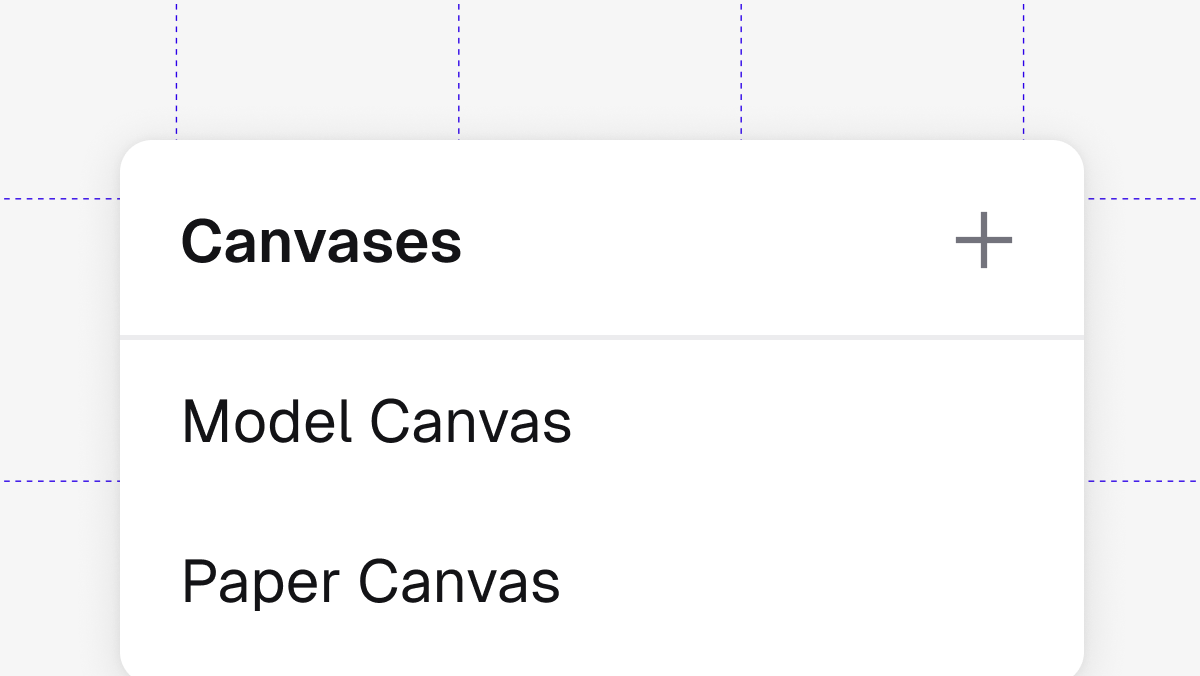
Navigate to the left menu where you can choose between the model canvas and the paper canvas. Select the paper canvas option because it provides a one-to-one scale workspace suited for assembling images, annotations, and mood board layouts. The interface will notify you that the paper canvas does not yet contain any pages.
Add Pages in Layers Panel
Create an initial page on your blank paper canvas to begin structuring your mood board. To add more pages, open the layers panel, click the plus icon, and select the page option to generate an additional sheet. You can also adjust the formatting under format if you require imperial, metric, or custom dimensions.
Import Images from Computer
Save your conceptual inspiration images directly to your computer from an external source such as Pinterest. Open the hamburger menu inside Rayon, select the import option, and choose your saved image file to load it directly onto your canvas. Once imported, the image can be cut, resized, and repositioned on the page.
Paste Copied Images into Canvas
Transfer images into Rayon more rapidly by copying them directly from your source. Return to your Rayon canvas and paste the copied asset using keyboard shortcuts or by opening the right-click menu and selecting paste. This approach quickly brings conceptual images of nature, fashion, or objects directly onto the paper layout.
Crop Images on the Canvas
Select an image placed on your canvas that requires reframing or cropping. Hold down the control key, or the command key if working on a Mac, while adjusting the boundaries to crop the visible area of the image. This allows you to eliminate distracting details and emphasize only the specific conceptual elements.
Edit and Arrange Mood Board Assets
Select an image and click the edit option, or access the right-click context menu to reveal editing commands. Use these controls to rotate, flip, hide, lock, or download the image onto your computer. If you are layering multiple graphics, arrange their order by bringing elements to the front or sending them backward.
Modify Image Features and Remove Background
Access the additional controls displayed on the right side of the interface to further refine your selected images. Apply a stroke around an image or click remove background to automatically erase unwanted solid backdrops from product cutouts. You can also upscale image assets to enhance visual clarity across the sheet.
Add Written Descriptions of Evoked Sensations
Document the intended mood board atmosphere by adding written descriptions alongside your curated imagery. Record the specific sensations, feelings, and emotions that the selected conceptual images are intended to evoke for the residential space. These descriptive notes help connect abstract visual references with the final interior design concept when presenting to clients.
Mentioned in this video

Images
Canvases
Related videos
From client email to concept mood board: my full process in Rayon
A mood board is the first thing that tells a client you've understood them.
Restaurant interior design process: layout, mood board, and presentation in Rayon
Taking a restaurant brief from concept to client-ready presentation without switching tools.