
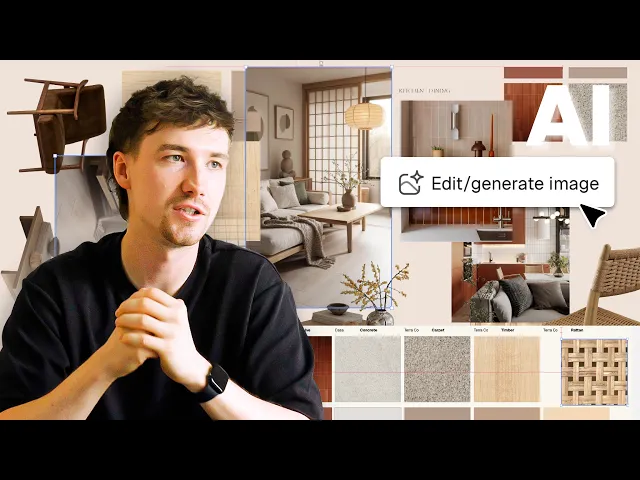
From client email to concept mood board: my full process in Rayon
Turn a real client brief (a Paris apartment) into a concept mood board: palette, textures, AI iterations and supplier data, shared as a live link or PDF.
What you'll learn
This tutorial demonstrates how to transform a client brief into a comprehensive interior concept mood board in Rayon using the paper canvas, AI image generation, background removal, custom product metadata, and presentation publishing.
Create Color Swatches from Reference Images
Draw shapes directly within the Rayon canvas to sample color tones from client reference imagery. Select specific shades such as terracotta, cream, and muted green to define a harmonious project palette. Arrange these colored shapes systematically into categorized swatches to represent key material tones.
Generate Image Variations with AI
Select an image on the canvas and activate the generate image tool located at the bottom bar. Enter a descriptive text prompt or take a screenshot reference to modify specific elements, such as swapping lampshade colors. Generate the adjusted image within seconds to explore atmospheric visual alternatives for client consideration.
Insert Furniture into Scenes Using AI
Select an existing interior scene image to use as the environmental background. Utilize the generative AI tool to prompt specific furniture pieces, such as wooden rattan chairs, directly into the chosen space. Produce a convincing composite image that illustrates how selected furniture items harmonize within the room.
Configure Presentation Pages in Paper Canvas
Add new pages inside the paper canvas to structure the layout for different presentation sections. Adjust each page format to standard dimensions such as A3 or A2 depending on project needs. Design dedicated sheets to organize references, materiality swatches, product furniture selections, and comprehensive mood boards.
Annotate Furniture Pieces Using Leaders
Position furniture reference images onto the presentation sheet, scaling and centering items neatly. Insert a leader tool to create precise pointing annotations connected directly to individual products. Adjust the leader lines and add descriptive text to clearly communicate product specifications.
Attach Custom Properties and Product Links
Select a furniture graphic and access custom properties from the right-hand panel. Define text and currency properties to store details including product name, manufacturer brand, and retail price. Create a dedicated link property pointing directly to the product website so collaborators can open sourcing links with one click.
Isolate Product Images with Remove Background
Select a piece of furniture or accessory on the board and locate the AI tools menu. Click the remove background tool to automatically detect the main subject and erase surrounding pixels. Layer these clean cutouts over background blocks and swatches to add visual depth to the mood board layout.
Refine Page Backgrounds and Presentation Styling
Select the presentation pages and customize their background colors with subtle warm tones rather than standard white. Incorporate project details, such as branding elements and project location, into sheet corners for a tailored finish. Balance text typography, image scales, and spacing to deliver an elegant, professional mood board.
Export PDF or Share Live Presentation
Open the pages tab on the left side to arrange sheet order and export the document as a high-quality PDF. Alternatively, open the share dialog in the top-right corner and toggle on publish presentation to generate a live URL. Provide this browser link to clients so they instantly view live canvas updates whenever they refresh.
Mentioned in this video

Images
Work with AI
Custom properties
Related videos
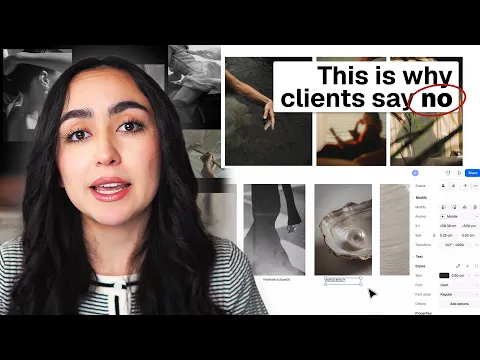
Why most interior design mood boards don't work (and how to fix that)
Mood boards are one of the most important parts of the interior design process.
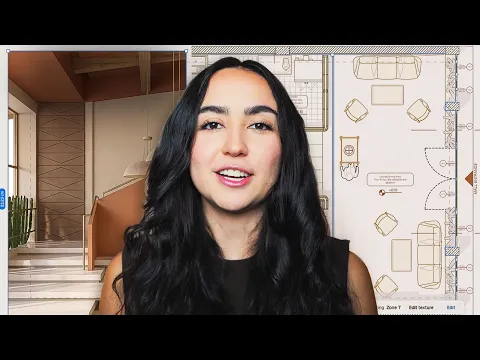
Restaurant interior design process: layout, mood board, and presentation in Rayon
Taking a restaurant brief from concept to client-ready presentation without switching tools.