
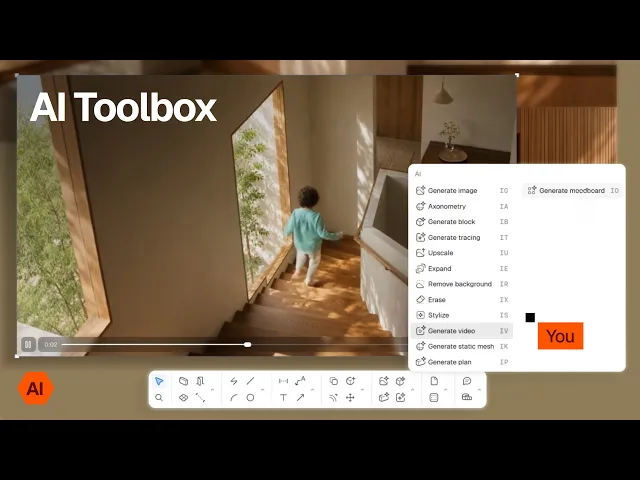
The Rayon AI toolbox
Rayon’s AI toolbox: generating and editing renders, creating 2D and 3D blocks from images and tracing images, plus upscaling, erasing, video generation, plan generation and mood boards.
What you'll learn
Learn what each tool in Rayon's AI toolbox does, from generating and stylizing renders to creating 2D and 3D blocks, tracing, cleaning up images, generating video, plans and mood boards.
Finding the AI tools
In the paper canvas the AI features sit in the main toolbar behind the up arrow. They are also available from the right-hand panel when an image is selected, and from the edits with AI options above the toolbar.
Generating images from prompts and references
Generate image takes a text prompt, such as a concrete texture or a living room render, plus input references from a view, page, 3D camera, screenshot, canvas image or desktop upload. A screenshot of a kitchen elevation produced a render matched to the geometry within 10 seconds.
Editing and stylizing renders
Select an image, return to generate image and use the annotate tool with a small pen, large pen or detect objects to render changes. The stylize tool offers watercolor, freehand, CGI, clay and wireframe, and clay suits axonometric views.
Creating axonometric views
Add a view, page, image or upload as the reference, then prompt for an axonometric view, for example black and white, in a particular style or from a particular viewpoint. The result keeps the geometry and block detailing of the plan.
Generating 2D blocks from images
Generate block turns a product image, such as a client's armchair, into an editable 2D block without manual tracing. The definition panel lets you switch between the top, side and front views it created.
Generating 3D blocks with static mesh
Generate static mesh follows the same process and produces a detailed 3D block in about a minute, including features such as wooden arms and cream cushions. Generated 2D and 3D blocks appear in a generated blocks section of the block library.
Tracing images into vector drawings
Select an image and click generate tracing to get an editable vector drawing of the scene, and a thinner line weight turns it into a graphic sketch. It can also trace several products from a mood board at once.
Upscaling and expanding images
Upscale makes a lower-resolution image crisper. The expand tool adds blue bars to pull out, and extending by around 20 to 25 percent works better than extending far.
Removing backgrounds and objects
Remove background cuts a piece of furniture cleanly with a slight blur, which suits mood boards and material option overlays. Erase removes a person or object by masking an area with the small ball point, here a child on the stairs.
Generating video for presentations
Select an image or add one with the plus button, then prompt how to animate it, such as people on the stairs or trees moving in the window. The video keeps the image's aspect ratio and can be looped, muted or viewed full screen in the paper canvas and presentation mode.
Generating a plan from a PDF or image
Import a client's PDF or floor plan image into the model canvas and use generate plan to trace it into a workable Rayon plan. Auto scale to real size estimates the scale from room and door sizes, and in about 30 seconds the plan arrives with walls, door and window blocks and zones.
Generating a mood board
Select an image and ask for a mood board of colours, materials and products. Within seconds it returns lighting, table and chair options, example scenes and material references that can be overlaid and composed with background removal.
Related videos
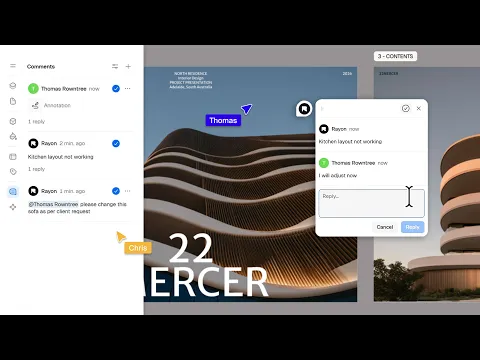
How to share and collaborate on models in Rayon
From inviting collaborators to working on a shared model.
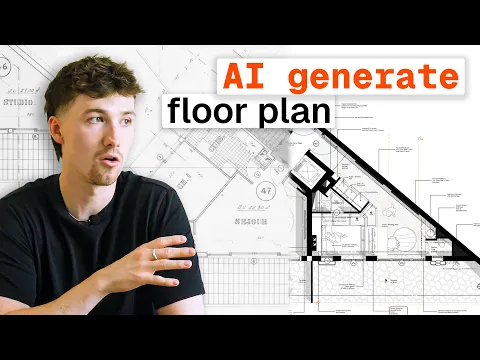
AI floor plan generation: is it actually helpful?
AI-generated floor plans are a starting point, not a finished drawing.
Restaurant interior design process: layout, mood board, and presentation in Rayon
Taking a restaurant brief from concept to client-ready presentation without switching tools.