
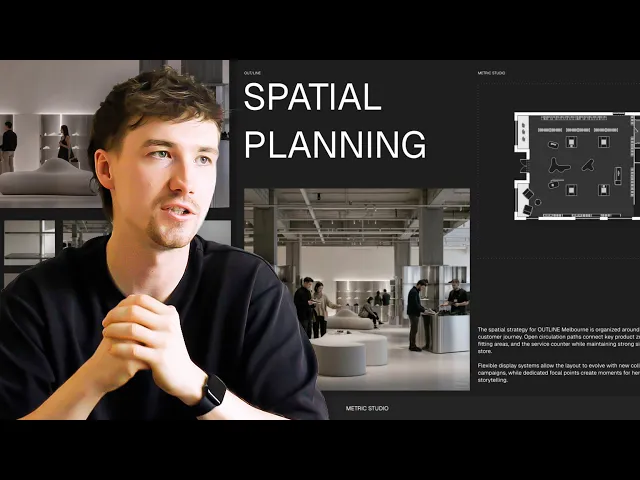
How I Built a Minimal Interior Design Concept Deck (Rayon Template)
Building an interior design concept deck in Rayon: image grids, AI-generated images and live drawing views, plus layer overrides, floor plans, elevations and saved text styles.
What you'll learn
Transform an empty concept deck template in Rayon into a complete client presentation by populating presentation pages with images, model canvas drawing viewports, and customized text styles.
Import Reference Images onto the Canvas
Navigate to the import panel on the left side and select image, or drag files directly from the desktop onto the paper canvas. You can also paste copied images found online or from external design websites into the project workspace. Once imported, arrange the various retail viewpoints and material photos on the side of the presentation layout.
Iterate Concepts Using Generate Image
Select an image and open the generate image tool from the AI tools menu on the bottom bar. Enter a prompt such as adding people and activity to visualize space utilization, or select a specific furniture area to explore darker concrete materials. Submit the prompt to generate an updated visual concept that maintains the existing structure while refining specific details.
Position and Crop Template Images
Drag selected images across the canvas to locate them over the designated template placeholders and scale them into place. If an image's aspect ratio differs from the template frame, double-click the image or select edit to access cropping controls. Adjust the boundary handles so the cropped edges snap neatly to the underlying layout shapes.
Arrange Layer Depth and Ordering
When an imported graphic sits underneath a placeholder shape on the same layer, right-click the element to adjust its depth. Choose the arrange option followed by bring to front of layer to pull the graphic into the foreground. Alternatively, reorder elements by organizing them directly within the layers panel on the left side of the workspace.
Populate Placeholders Using Pick Style
Select a placeholder shape on the materials page and click the pick style option located on the right-hand panel. Click an external image to automatically fill that target shape with the graphic at the appropriate aspect ratio and scale. If the image is off-center, double-click to reposition and adjust corner points before cropping it back down.
Create a Model Canvas Viewport
Navigate to the layers panel area on the left side and choose add a view to bring drawings from the model canvas onto the page. Set the viewport drawing scale on the right-hand panel to an appropriate proportion such as 1 to 100 or 1 to 150. Double-click inside the view to pan the drawing into the desired position and crop the outer viewport frame.
Override Viewport Layers for Spatial Planning
Select the drawing viewport on the spatial planning page and access the override settings in the menu. Use the layers list on the left to turn off specific elements such as dimensions and detailed furniture annotations. This strips the floor plan down to its primary layout lines so it reads clearly as a clean spatial diagram.
Duplicate Viewport and Reset Overrides
Copy the existing floor plan viewport to the detailed concept page, reposition it centrally, and update the scale to 1 to 100. Open the view overrides menu and reset the layer overrides to make all hidden annotations and dimensions visible again. Repeat this viewport creation process to bring elevations from the model canvas onto their corresponding presentation sheet.
Customize Text Content and Global Styles
Select any title or paragraph on the pages to edit placeholder text and customize project descriptions. Modify formatting attributes such as font, text size, or text color on the right-hand properties panel to adjust the visual hierarchy. Because saved styles are assigned across the entire template, your changes automatically update matching text elements throughout every page.
Related videos
How Rayon Made Millwork Drawing 5x Easier (Step-by-Step)
Most millwork documentation isn't complicated design work, it's administration.
A Low-Energy Home Hidden in the Oxfordshire Countryside | Charlie Luxton Design
From a home tucked into the landscape to the stories within.
Become a trainer
You use Rayon, and want to teach others?
Become a trainer for our academy, and get paid to share your passion!