
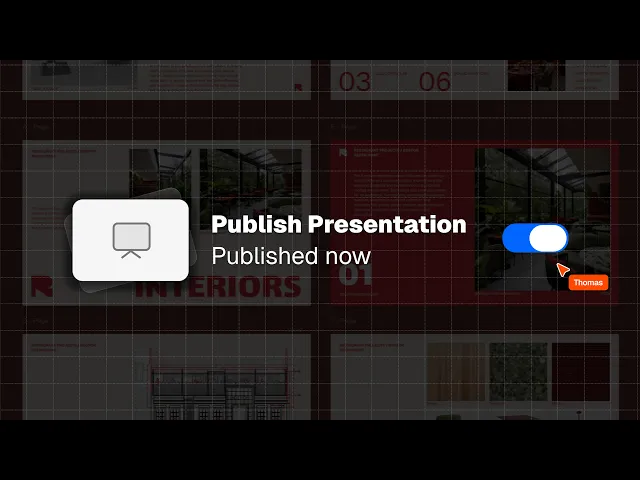
PDF export vs live presentation
PDF export vs live presentation link: when to send a fixed file, and when to share a link that always shows the latest version.
What you'll learn
Learn how to distribute your Rayon drawing sets and presentations using either a static PDF export or an interactive live presentation link. This guide covers organizing pages, setting export parameters, publishing live links, updating live presentations without resending files, and unpublishing content.
Organize Presentations in the Page Panel
Rayon hosts drawings and presentations directly on pages to help structure your finished portfolio or drawing set before sending it to clients, project team members, or stakeholders. You can open the page panel to manage and arrange the order of your pages effectively. This organizational structure serves as the foundation for both exporting static files and sharing live presentation links.
Configure Export Format and Detail Options
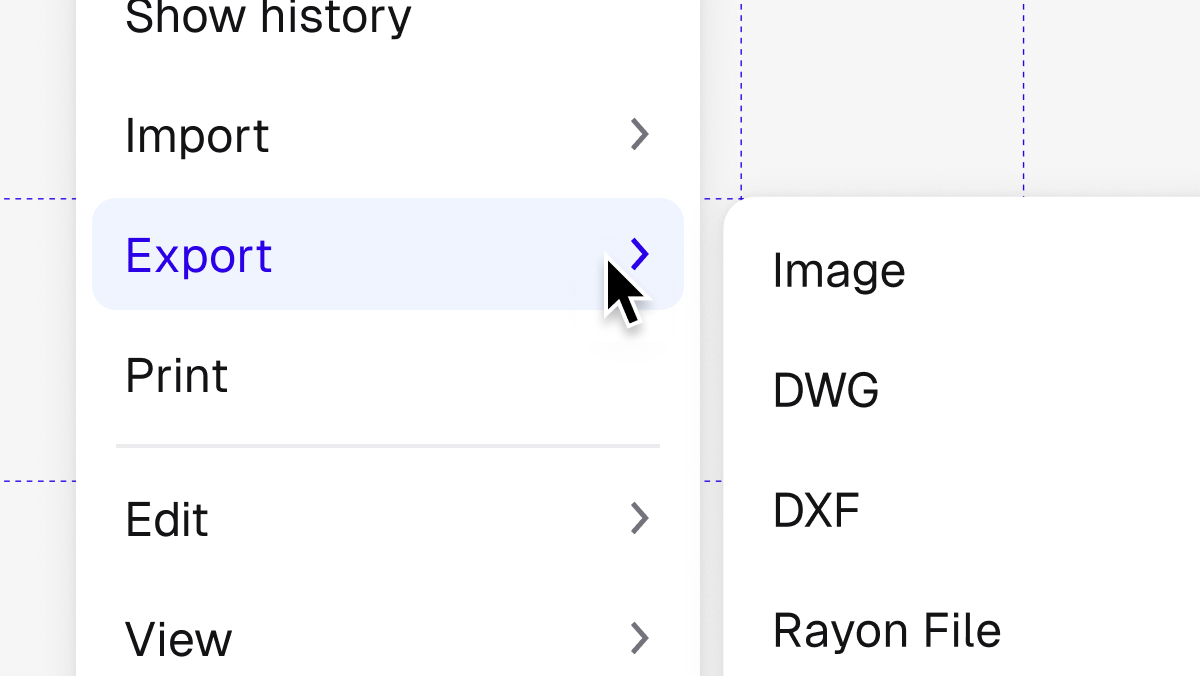
When preparing a PDF export, define your required format, specific page range, and image resolution to resolve file size and quality challenges. You can open the advanced settings to customize your stroke scale and select the desired detail level. This configuration ensures your drawings and presentations are captured accurately according to your delivery needs.
Export and Share Static PDF Files
Complete the export process to generate a fixed, self-contained PDF file that takes seconds to produce. You can distribute this completed file by sending it through email, uploading it to a cloud drive, or utilizing any file transfer method you already use. However, because the exported PDF is static, any future changes made to the presentation will require exporting and resending the file.
Publish Presentation as a Live Link
Instead of distributing static files, activate the sharing tool to publish your presentation as a live link. This tool generates a shareable web link that avoids the traditional challenges of managing file sizes and keeping documents current once sent. Publishing this link takes only seconds in Rayon and offers a dynamic alternative to static document exports.
View Live Pages in a Browser
Anyone who receives the live link can open it directly inside any standard web browser without needing a static file download. The browser display presents every single page exactly as it appears within Rayon to your client, team member, or stakeholder. This ensures all viewers observe your drawing set with complete visual fidelity directly from the source.
Refresh the Shared Live Link
Whenever you edit drawings, update a schedule, or delete a page, open the share option and click refresh rather than creating a new file. Clicking refresh updates the live link so you never need to resend anything to your recipients. As long as viewers refresh their web browsers, they immediately see the current version rather than the older draft.
Unpublish the Link to Go Offline
If a presentation needs to come offline at any point, access the sharing options and unpublish it. Unpublishing immediately takes the live link offline so it can no longer be viewed by people who received access. This feature gives you full control over presentation availability, contrasting with fixed, self-contained PDF files that remain with recipients permanently.
Mentioned in this video
Exporting & printing

Presentations
Related videos
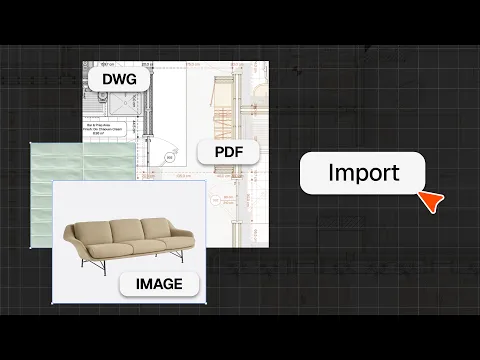
How to import DWG, PDF & image files
Bring DWG, PDF and image files into Rayon and start drawing on top of them.
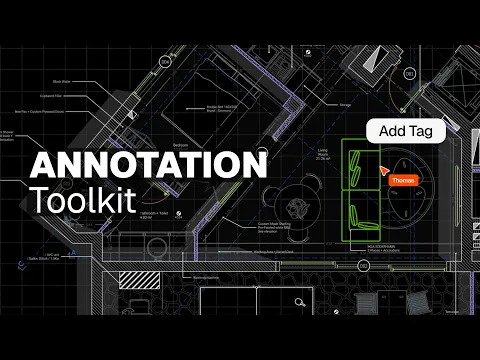
How to add dimensions, text, and tags to drawings in Rayon
A drawing without annotation is just geometry.
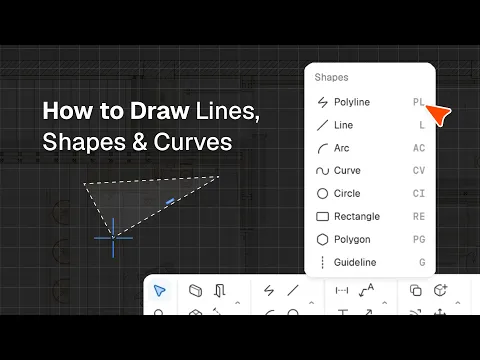
How to draw lines, shapes, and curves in Rayon
A quick tour of Rayon's shape tools: polylines, lines, arcs, curves, circles and rectangles.