
How to Use Pages to Build & Share Presentations in Rayon
Building and sharing presentations in Rayon: creating pages, placing views and ordering and numbering pages, plus publishing, updating and exporting presentations as PDF or PNG.
What you'll learn
Learn how to create and customize pages on a paper canvas, organize their sequence, and curate them into presentations to share via live links or exported files.
Create a Paper Canvas and Add Pages
Click the plus button in the top left corner to create a paper canvas, then click create page at the top. On the right-hand panel, customize your page format, orientation, size, and background color to suit your presentation branding. Additional pages can be introduced using the layers panel plus button or from the bottom panel.
Place a Model View onto the Page
Click the plus button on the left-hand panel, select view, and create a viewport into one of your model canvases. Position the drawing onto the page, adjust its scale, and crop it down into place. Once placed, selecting and moving the page will move the hosted view and its elements along with it.
Configure Page Ordering and Canvas Layout
Open the three dots menu in the pages panel to switch between card and list views and adjust page sequencing. By default, auto order by position numbers pages based on canvas coordinates, which you can set to sequence by row or column from left to right or right to left. Alternatively, toggle off auto order by position to drag and reorder pages manually in the list.
Insert Automatic Page Numbers
Select a page on your canvas to reveal the prompt that allows you to insert a page number. Rayon automatically identifies the page's position within the sequence and places the number on the frame. You can style the number by adjusting its size and color, and it automatically updates whenever pages are reordered.
Create a Curated Presentation Set
Click the all pages dropdown or the plus icon beside the play button to create a new presentation from a subset of pages. Switch the selection toggle, deselect all pages, and pick the specific drawings or studies you want to include before naming the set. Pages included in the presentation remain highlighted, while excluded pages are grayed out on the paper canvas.
Preview the Presentation
Click the play button in the top left or top right corner of the workspace to launch a preview. Select the specific presentation set from the dropdown menu to inspect its slides in high resolution. You can toggle the left-hand page panel on to review and navigate through the pages before sharing.
Publish and Open Presentation Mode
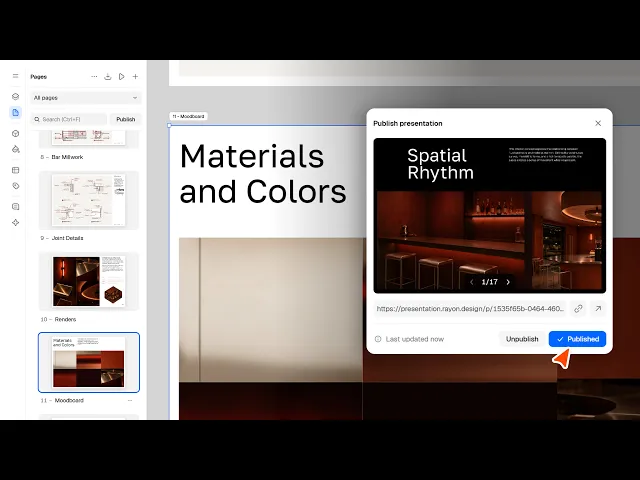
Click the publish button directly above your presentation in the page panel to generate a live shareable link. Choose whether to copy the presentation link for clients or open presentation mode directly. In presentation mode, viewers can navigate slides and use measuring tools to check distances, lengths, and room areas on floor plans.
Update or Unpublish the Presentation
Return to the presentation settings icon to add or remove pages as revisions are made to your drawings. Open the publish button to see when the link was last updated, then click publish changes to push those updates to the client's link. If you need to revoke access, click unpublish so the live link can no longer be viewed.
Export the Presentation as Files
Click the export icon located alongside the play button to export your presentation rather than sharing a live link. Select your preferred format as PDF or PNG, adjust the export quality, and confirm your page range selection. Click export to generate the final file to share with clients via email.
Related videos
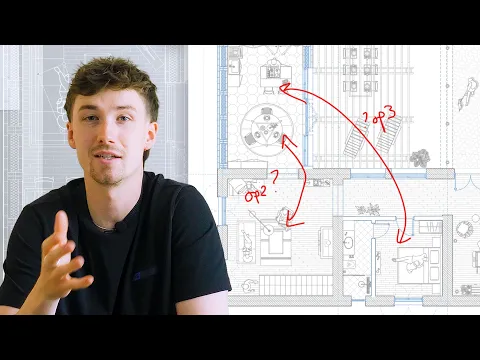
How to Draw & Present Multiple Floor Plan Options to a Client (Tutorial)
See the final design proposal for a barn conversion project located on the south west coast of England.
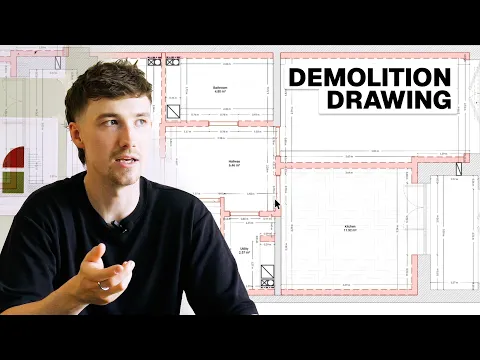
Demolition Drawing Tutorial: Essential Steps for Every Renovation
See how to modernise a 1980s apartment through sustainable architecture and interior design practices.
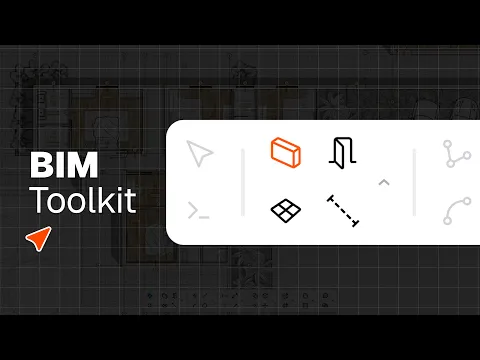
The Rayon BIM Toolkit: Walls, Openings & Zones
Draw walls, place doors and windows, and define rooms with zones.
Become a trainer
You use Rayon, and want to teach others?
Become a trainer for our academy, and get paid to share your passion!