
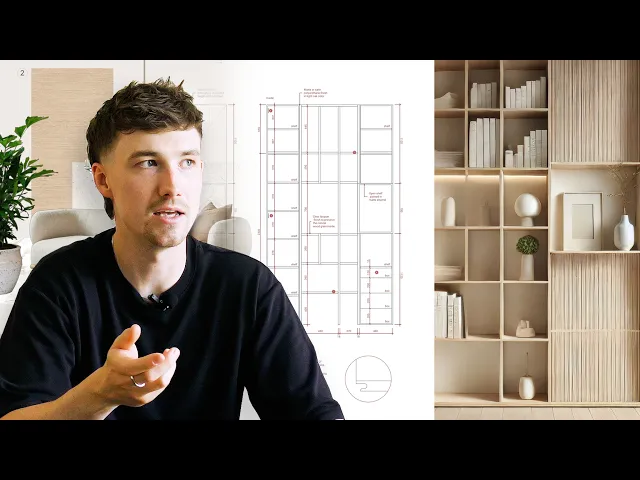
How to build a client ready presentation (step-by-step in Rayon)
Turn a finished drawing set into a client deck: page structure, grid, live drawing views, mood board and AI-enhanced visuals, published as a live link or PDF.
What you'll learn
Learn how to transform technical drawings and reference assets into a complete client-ready presentation deck directly inside Rayon. This workflow covers page organization, live viewport placement, AI asset generation, styling systems, and final delivery via PDF export or live sharing.
Create and Organize Presentation Pages
Head into the paper canvas and click the plus button to add a page into the workspace, defining the sheet format such as A3, A2, or A1. Duplicate pages across the canvas by copying or holding alt, or generate additional pages from the left-hand panel. Organize the narrative sequence in the page tab on the left to establish the presentation flow.
Set Up Canvas Guidelines and Grid Blocks
Draw vertical, horizontal, or angled guidelines across the canvas to provide consistent alignment for presentation elements. Create custom grid layouts using rectangles and offset margins, then select the elements and right-click to turn them into a block. Duplicate this grid block across sheets so future layout modifications synchronize across all pages.
Insert and Scale Model Canvas Viewports
Create a view to pull live drawing viewports from the model canvas directly onto the paper canvas presentation pages. Adjust drawing scale in the right-hand panel, crop the boundary to the intended framing, and center the viewport on the page. Copy viewports across subsequent pages and reframe them to display different plans, elevations, or cabinetry details.
Add Formatted Text and Saved Styles
Place drawing titles and subtitles onto the layout using the text tool, customizing font properties, sizing, and colors in the right-hand panel. Save the configured typography as a designated text style by selecting the plus button above the text panel. Apply this saved style to titles across multiple pages to enable global visual updates whenever changes are made.
Build Mood Board with Background Removal
Create a dedicated layer for reference imagery and assign selected furniture and fixture items to it. Utilize Rayon's AI background removal tool to isolate subjects such as chairs, plants, and lighting from original photo backgrounds. Combine the isolated objects with material swatches into a collage layout, accompanied by a numbered circular key list.
Customize Page Background Colors
Select individual presentation pages in the paper canvas to access and modify their background settings. Apply project palette tones to sheet backgrounds to establish clear visual distinction between technical plans and material boards. This color structure introduces consistent rhythm throughout the deck and cleanly delineates distinct project sections.
Generate Contextual Renders with AI
Open the bottom toolbar and select the generate image tool, capturing a screenshot of an elevation drawing to serve as the prompt reference. Input text prompts to generate a contemporary render of the space, refining the prompt to adjust palettes or eliminate technical annotations. Position the final rendered visual alongside the original elevation to communicate realistic atmosphere to clients.
Upscale Low-Resolution Project Images
Identify low-resolution reference images that need visual enhancement on the canvas. Select the target image and activate the upscale tool located in the bottom options menu to produce higher-resolution artwork. Position the refined high-clarity graphics within the designated page grid to enhance presentation quality.
Apply Automated Page Numbers
Select the page number tag tool and click onto presentation pages to generate automatic numbering in the lower right corner. These numerical tags stay tied to the page order set in the sidebar management panel. Rearrange or adjust sheets at any time while the page numbers update dynamically without manual revisions.
Share Presentation via PDF or Link
Export the complete presentation or a designated range of pages as a PDF for client delivery. Alternatively, navigate to the share menu in the top right corner and switch on the live presentation toggle to copy a shareable link. Distribute this web link to clients so they immediately view the latest design revisions whenever the page is refreshed.
Mentioned in this video
Pages
Views
Presentations

Work with AI
Related videos
Why your interior design project presentation doesn't look professional (and how to fix it)
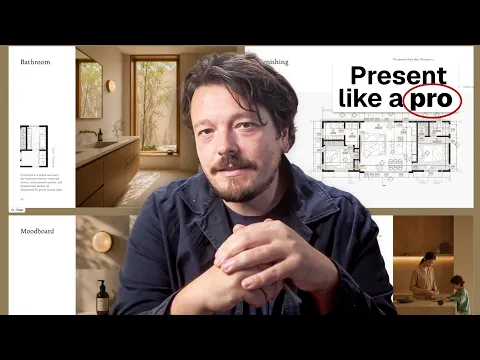
The gap between an interior design portfolio that looks amateur and one that looks like it came from a professional studio is almost never about the quality of the work inside it.
How I built a luxury interior design project presentation (Rayon template)
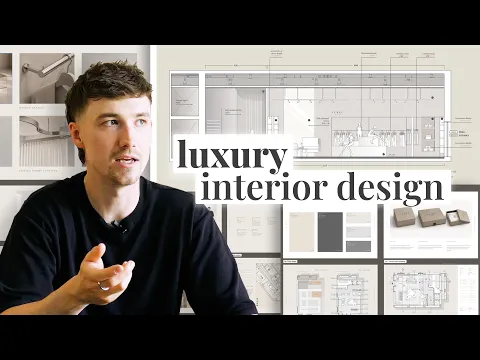
A luxury project deserves a presentation that matches it.