
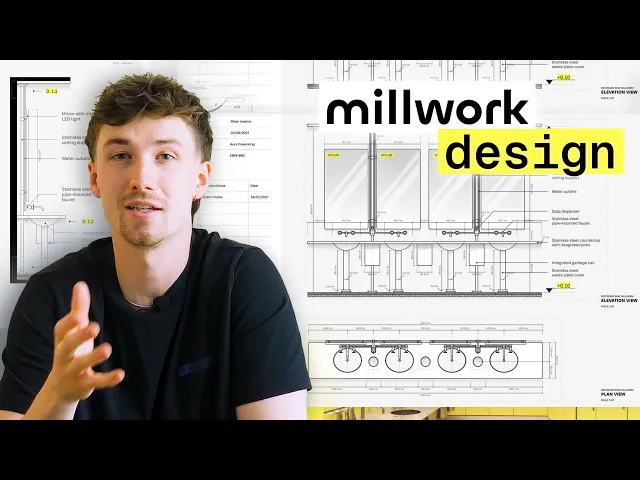
A Contemporary Spin on Millwork Drawings: Client Presentation
Presenting millwork drawings in Rayon: line hierarchy, hatches, gradients, shadows and annotations, plus page layouts, supporting images and AI-generated axonometric views.
What you'll learn
Transform an unstyled millwork drawing set into a presentation-ready client document using Rayon's contemporary millwork template. The workflow covers styling cut lines, applying material hatches, adding shadow gradients, placing annotations, and setting up paper canvas presentation sheets with AI-generated axonometric graphics.
Style Cut Lines and Save Styles
Select cut-through lines along the ceilings and floors to apply a solid black fill for clear graphic hierarchy. Click the plus button on the right-hand style panel to save the cut line appearance as a reusable style. Apply this saved style across other cut lines throughout the millwork drawings so any future modifications update globally.
Apply Textures and Pattern Hatches
Select elements such as the screed and navigate to textures or patterns in the properties panel to choose a dashed oblique hatch. Customize the pattern by adjusting the background tone, stroke color, and reducing the scale to 0.5 to alter line intensity. Save this pattern configuration as a screed style and apply it to matching drawing components.
Add Depth Using Gradients and Reflections
Copy geometry such as mirrors, scale them down, and apply a subtle linear gradient fill without strokes to simulate curved shadows. Draw shapes across the mirror surface, assign them a white fill with 50 percent opacity, and remove strokes to create realistic reflection lines. Duplicate these reflective shapes across adjacent mirrors to give millwork surfaces depth and dimension.
Create Solid Fills with Join Tool
Draw an arc defining the curvature of elements like a circular basin upstand by selecting two reference points. Add closing edges around the perimeter, select all the connecting segments, and execute the join editing tool to form a closed shape. Apply a gradient fill or an existing saved style to the closed geometry to establish cylindrical shading.
Add Leaders, Dimensions, and Annotations
Place leader annotations by selecting two points, entering descriptive specifications, and formatting typography, colors, and endpoints in the style panel. Draw single or looped dimensions across multiple millwork features, adding a white background fill to text when overlapping underlying geometry. Incorporate elevation markers, section symbols, and drawing titles sourced from the annotations block library.
Create and Crop Viewports on Paper Canvas
Switch from the model canvas to the paper canvas and open the contemporary millwork presentation template. Navigate to the layers bar, click the plus icon, and add a view referencing the millwork model canvas. Adjust the viewport scale to 1:20 in the properties panel, then crop and position the elevation drawing onto the presentation sheet.
Align Floor Plans and Sections with Guidelines
Duplicate the initial viewport and double-click inside to pan down to the corresponding floor plan before exiting the view. Pull out a guideline snapped to the edge of drawing elements like the mirror to ensure the plan and elevation align accurately. Repeat this viewport creation process to introduce additional sections and detailed views at customized scales like 1:10.
Generate Axonometric Views with Rayon AI
Return to the model canvas and select generate axonometric view from the AI panel at the bottom of the screen. Define a zone over the millwork elevation drawing and enter prompts specifying concrete and yellow tones to match the drawing brand palette. Allow the AI to process the layout geometry and generate a detailed three-dimensional axonometric rendering.
Remove Backgrounds from Generated Imagery
Select the generated axonometric illustration or product imagery and activate the remove background option in the AI tools panel. The tool cuts out surrounding white space in seconds, facilitating clean graphic composition across presentation sheets. Place the isolated graphics alongside drawings, supporting product photographs, and FF&E schedules to complete the document.
Related videos
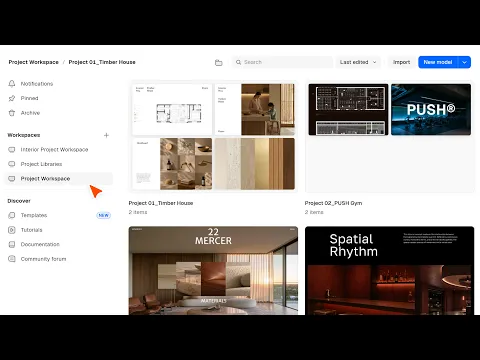
How to Start & Manage Your Interior Design and Architecture Projects
From organising models to setting up a drawing canvas.
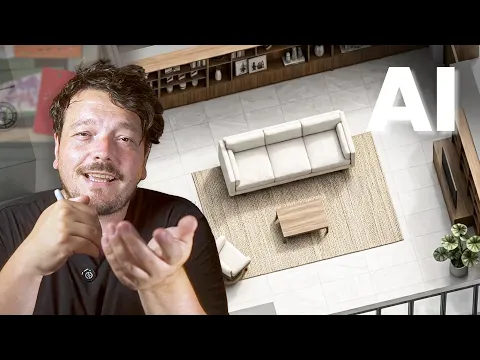
The AI Interior Design Workflow That Changed How I Work (Rayon AI)
Bridge the gap between a vague client brief and a clear feasibility scheme.
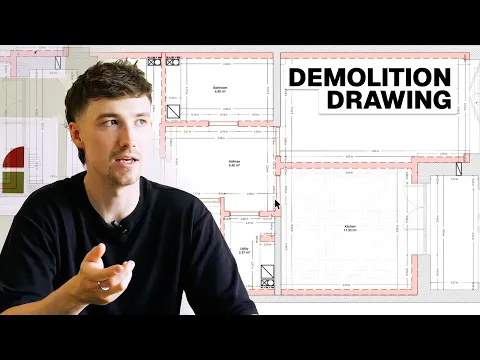
Demolition Drawing Tutorial: Essential Steps for Every Renovation
See how to modernise a 1980s apartment through sustainable architecture and interior design practices.
Become a trainer
You use Rayon, and want to teach others?
Become a trainer for our academy, and get paid to share your passion!